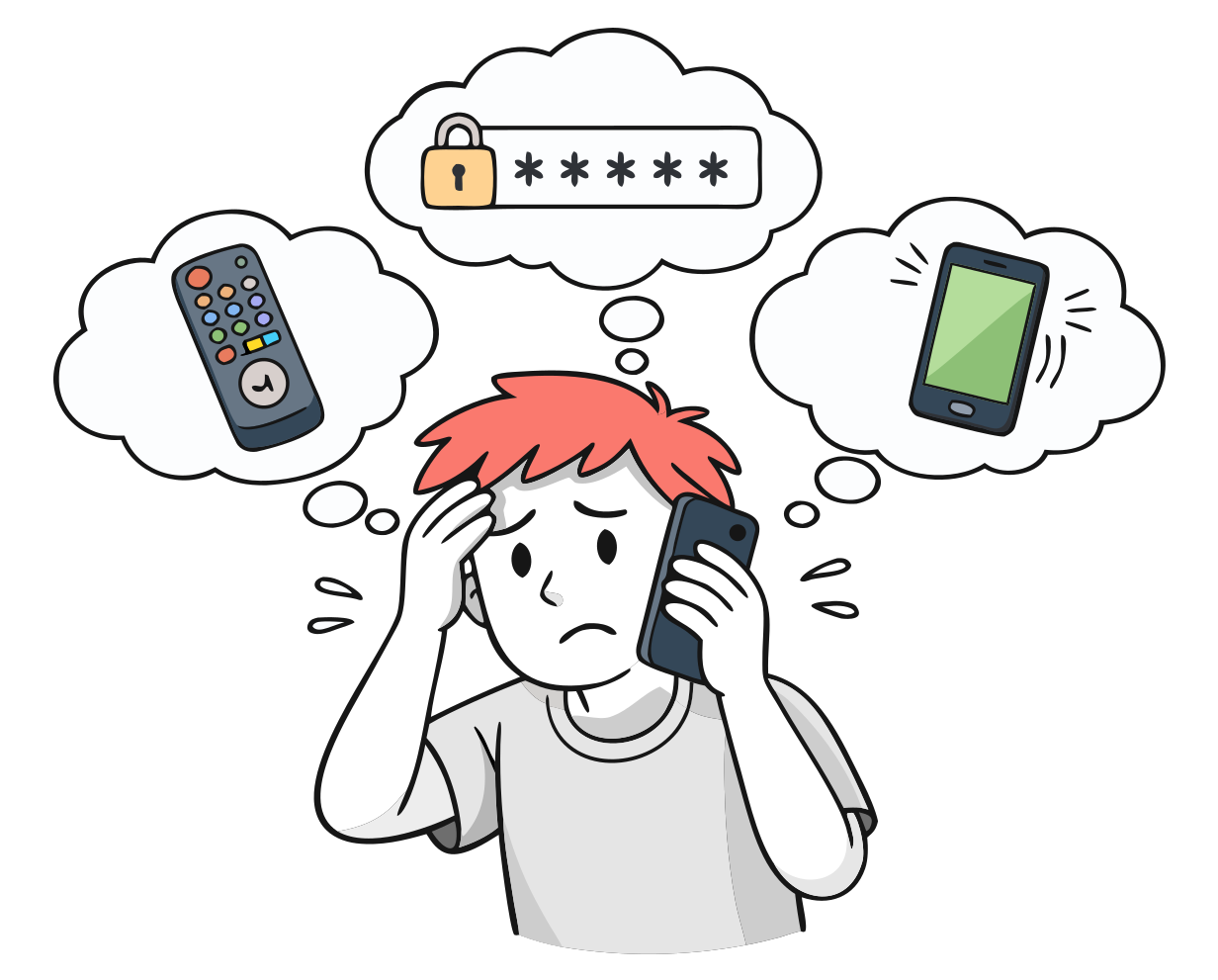
If you’re the person your parent calls when the TV remote “stopped working” or their email password doesn’t go through for the third time this month, you’re not alone. You walk them through it over the phone, it takes longer than it should, and you both hang up a little frustrated.
It’s a very common situation. In a 2017 Pew Research Center survey, about 77% of older adults said they would need someone to help them learn to use a new device. A lot of the difficulty isn’t technical, either. Your parents spent decades being the ones who knew how things worked. Being a beginner at something their grandchildren do without thinking can feel embarrassing, and it’s tempting for them to stop trying.
So you end up trying to keep them connected and safe while respecting their independence, and trying to stay patient while you do it.
Start with how much technology your parent needs
Most advice on helping seniors with technology covers how to teach: be patient, turn up the font size, show them how video calls work. That’s useful, but it skips an earlier question: how much technology does your parent need in the first place?
For many seniors, it’s less than we assume. Not every parent needs a smartphone or a set of apps. What most need is to stay in touch with family, to be reachable in an emergency, and to be protected from people trying to take advantage of them. Those things depend more on having the right setup than on learning anything new.
Common problems and what helps
Passwords
This is where most of the calls come from. Your parent has accounts they barely remember creating, passwords on scraps of paper (or nowhere at all), and security questions they set up years ago and can’t answer now. Each time they get locked out, you hear about it.
A password manager seems like the obvious fix, but it’s one more piece of software for them to learn. For many seniors, a notebook or laminated card kept in the same place, with accounts and passwords written in large print, works better. It lets them log in on their own instead of calling you every time.
Updates that move things around
Your parent finally gets comfortable with their phone, and then an update moves the button they relied on. A new screen asks them to accept something they don’t understand. They were fine with the old version, and now they feel lost again.
Each update sets their confidence back a little. Where you can, turn off automatic updates, switch off notifications they don’t need, and hold off on replacing a device that still works. A familiar device is usually worth more to them than a newer one.
The role reversal
Underneath the practical problems there’s usually an emotional one. Your parent used to be the one who figured things out, and now they’re asking you for help with something a child could do. You may feel impatient. They may feel embarrassed. Usually neither of you mentions it.
People who teach technology to seniors tend to say the same thing: how you help matters more than which device they use. Let them do it themselves instead of taking the phone out of their hands. If they want to learn, give them time to practice. If they don’t, that’s fine too. Some seniors don’t need to get better with technology. They need the technology around them to be simple enough that it doesn’t matter.
When it might be more than the technology
Sometimes the problem isn’t the device. Specialists at Ohio State’s Wexner Medical Center note that trouble with familiar technology, like a phone or remote someone used to handle easily, can be an early sign of cognitive decline. If your parent was comfortable with their devices six months ago and is regularly confused by them now, pay attention to that.
A forgotten password doesn’t mean dementia. But if you see difficulty growing across several devices, along with other changes in behavior or routine, it’s reasonable to bring it up with their doctor. Noticing changes early gives you more options for support.
What you can do this week
You don’t have to fix everything at once. These steps take some of the load off your parent and off you.
Take stock of what they use. Go through your parent’s home and list every device they deal with: TV remote, phone, tablet, computer. You may find subscriptions they don’t use or devices they don’t need. Remove what you can.
Write things down on paper. For the devices and accounts they do use, make a reference sheet in large print and keep it next to the device. Cover the basics: how to turn it on, how to make a call, and who to call if something goes wrong. A password manager works well for you. A laminated card by the phone works better for them.
Pick one person to handle tech help. When several family members give different advice (“download this app,” “no, use this one”), your parent ends up more confused. Agree on one person, and have everyone else send requests through them.
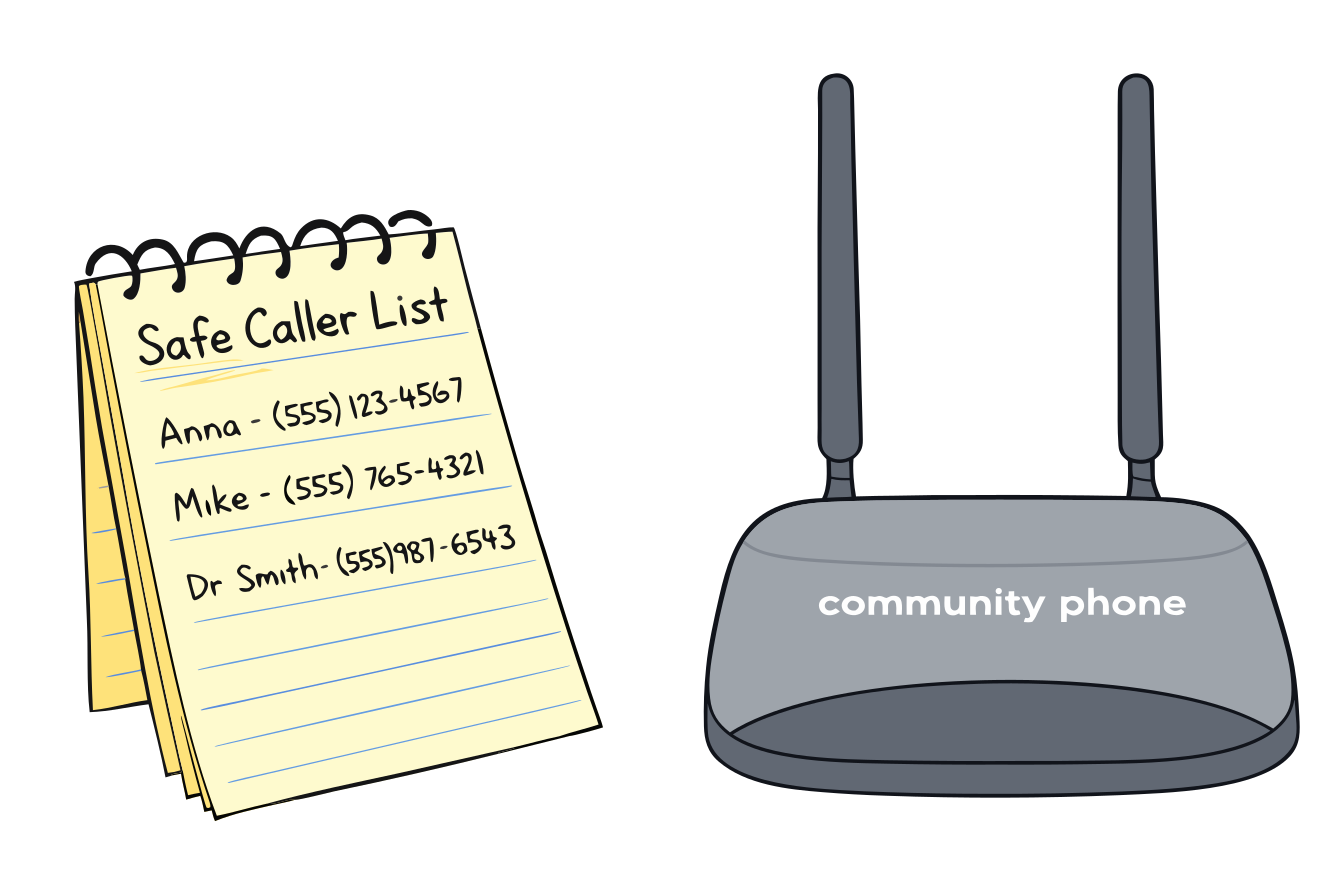
Talk about scam calls directly. Have a specific conversation with your parent about phone scams. Keep the rule simple: if someone calls asking for money or personal information, hang up. Hanging up isn’t rude in that situation. You can also write a short list of people who might call and keep it by the phone, so they have something to check against.
Build on the device they already know. For many families, the home phone is the one device their parent has never had trouble with. Instead of adding new gadgets, you can switch the phone service to one with built-in scam protection and tools for caregivers, while the phone itself works exactly the way it always has. That’s how Community Phone for loved ones works: your parent picks up and dials as usual, and your family gets scam protection and daily well-being monitoring in the background.